
You can connect your Microsoft email account from the Email Accounts tab in just a few steps. Follow the instructions below to select Microsoft as your provider, complete the sign-in process, and add your account to the platform.
In this documentation, we’ll walk you through the steps to add a Microsoft account.
Let’s get started 🚀
| INFO: A minimum of 45 mailboxes is required to maintain strong deliverability, safeguard domain reputation, and ensure scalable outreach across campaigns. Each mailbox has a daily sending limit (around 30–50 emails during ramp-up), and distributing volume across multiple mailboxes helps prevent oversending, reduce spam risks, and maintain consistent campaign performance. |
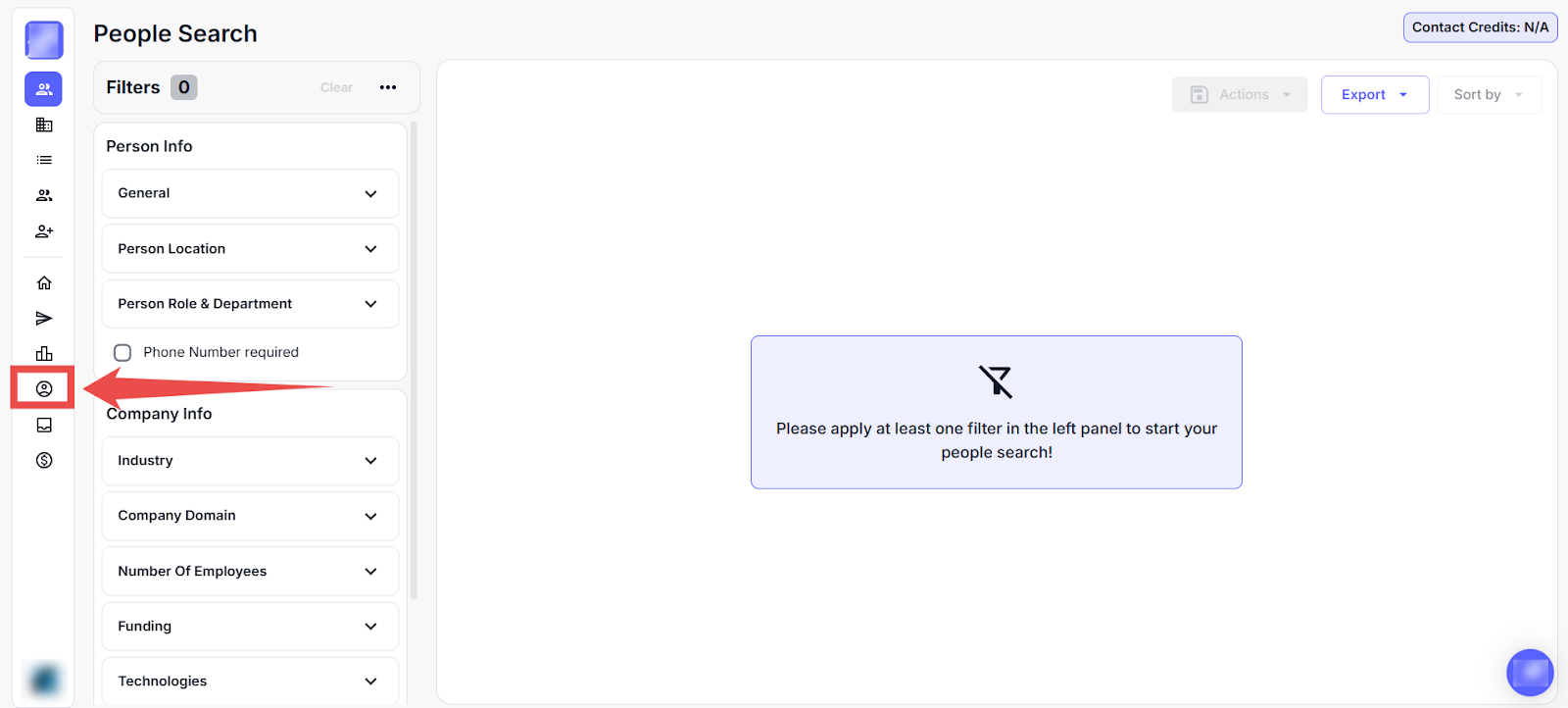
Step 1: Log in to your account and click on the Accounts icon from the left-hand sidebar.
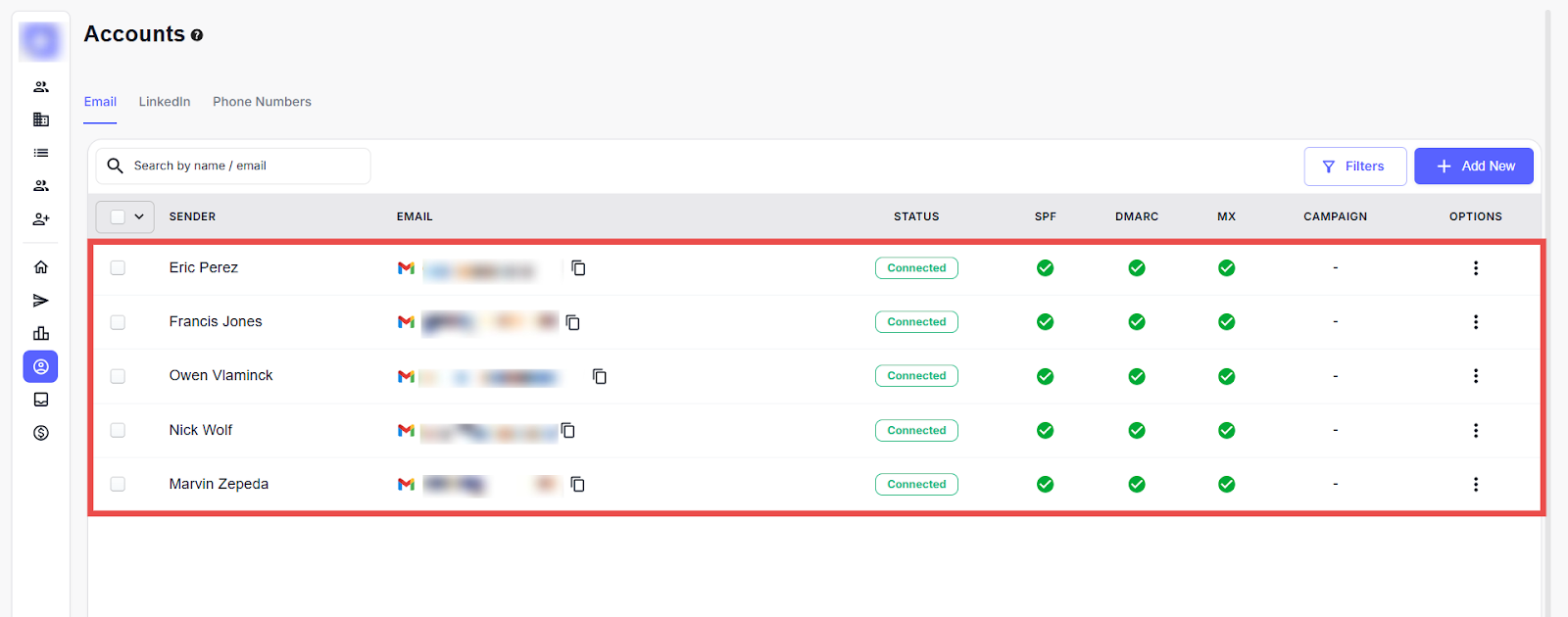
Step 2: By default, you will be navigated to the Email Accounts tab. Here, you can view all connected email accounts.
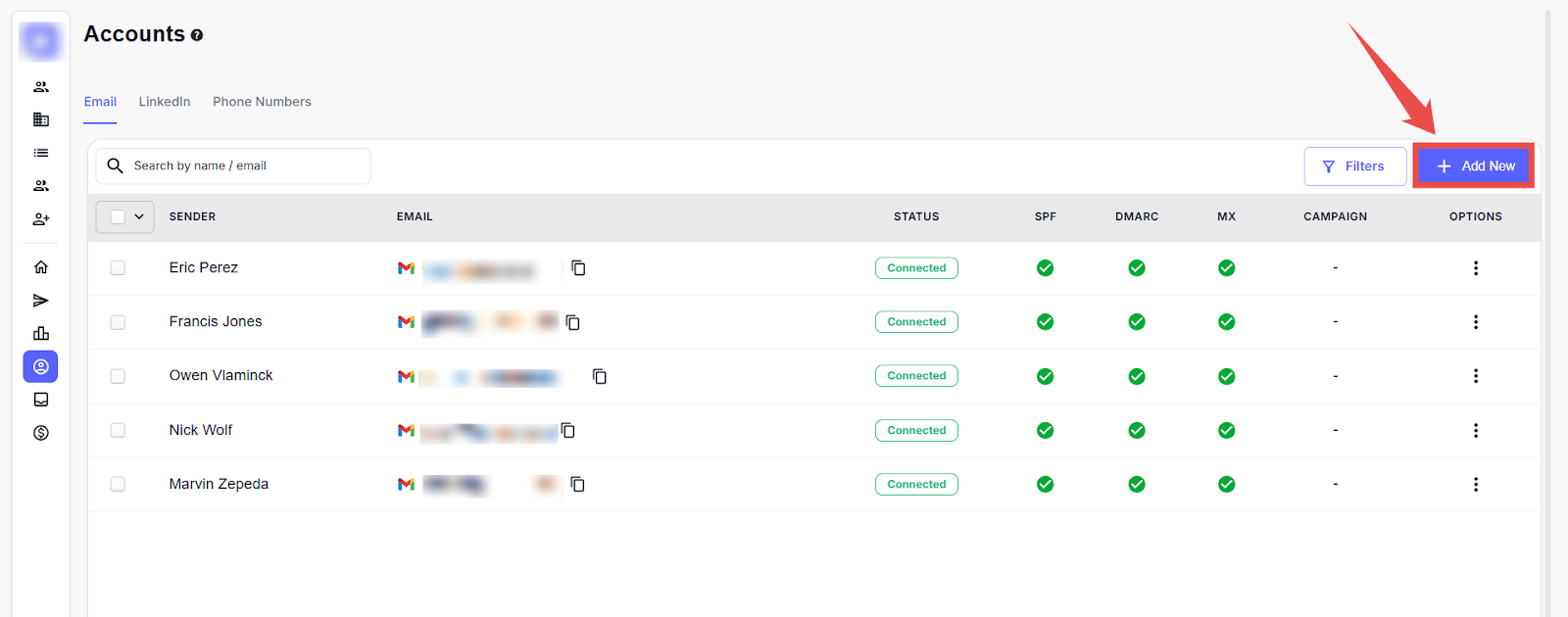
Step 3: Click on the +Add New button located at the top right corner to connect your Microsoft account.
A modal window titled "Connect Your Account" will appear, where you can select Microsoft as the email service provider.
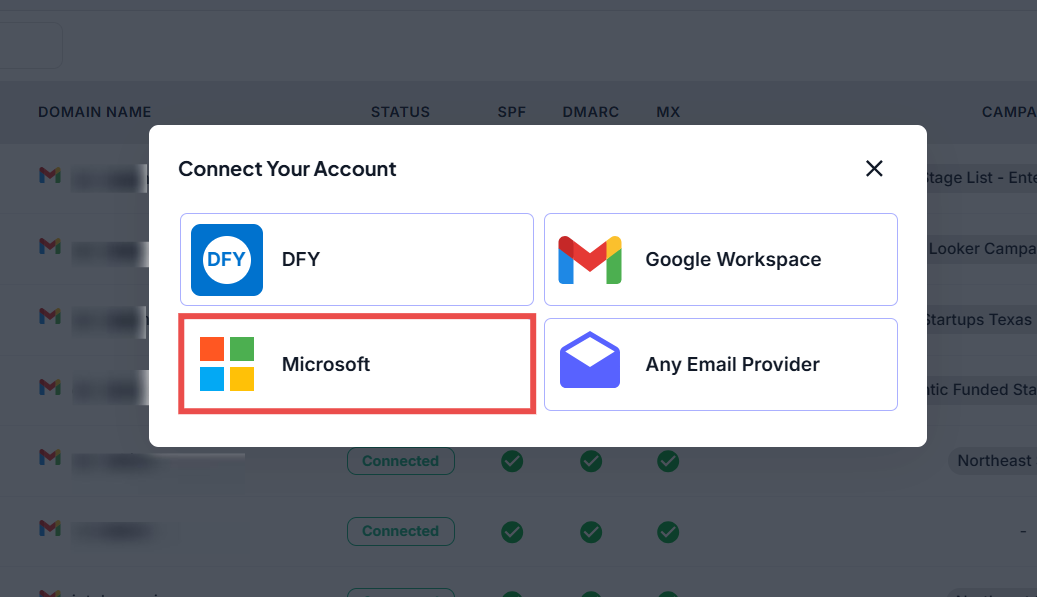
Step 4: After selecting Microsoft as your email provider, you will be redirected to the Microsoft sign-in page. Enter the email address associated with your Microsoft account, then click Next to continue.
|
Note: If you're already logged into the correct email, the platform will automatically skip the login process. |

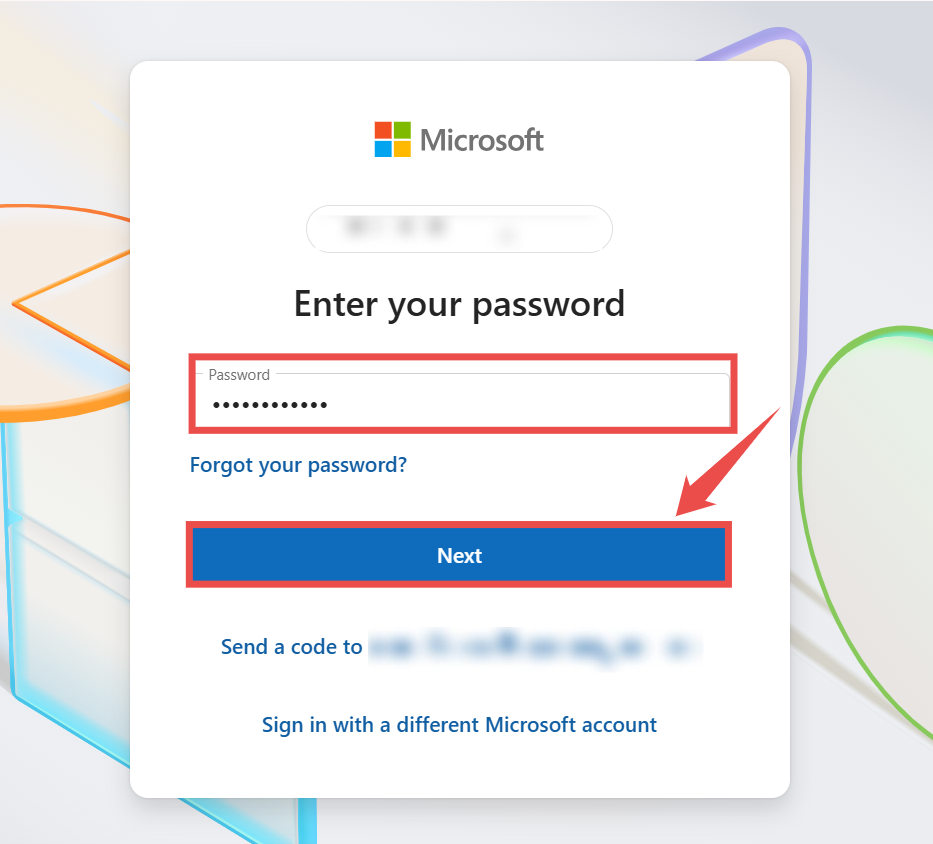
Step 5: Enter your Microsoft account password and click Next to complete the authentication process.
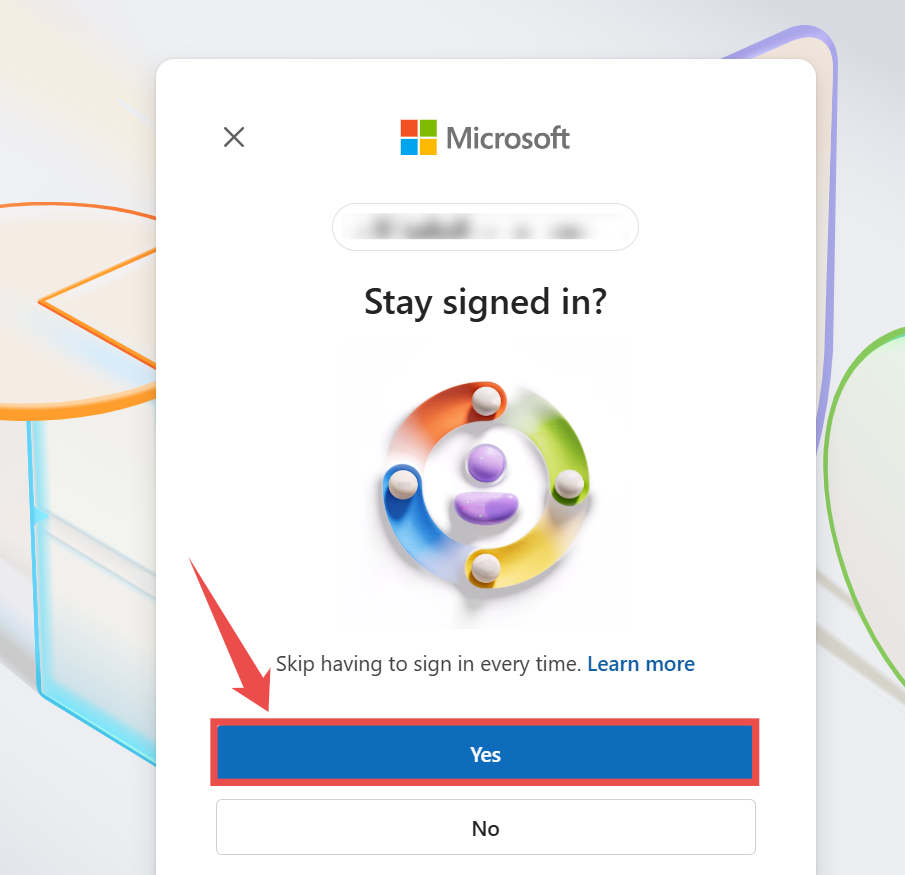
Step 6: On the Stay signed in? screen, click Yes to complete the Microsoft account connection.
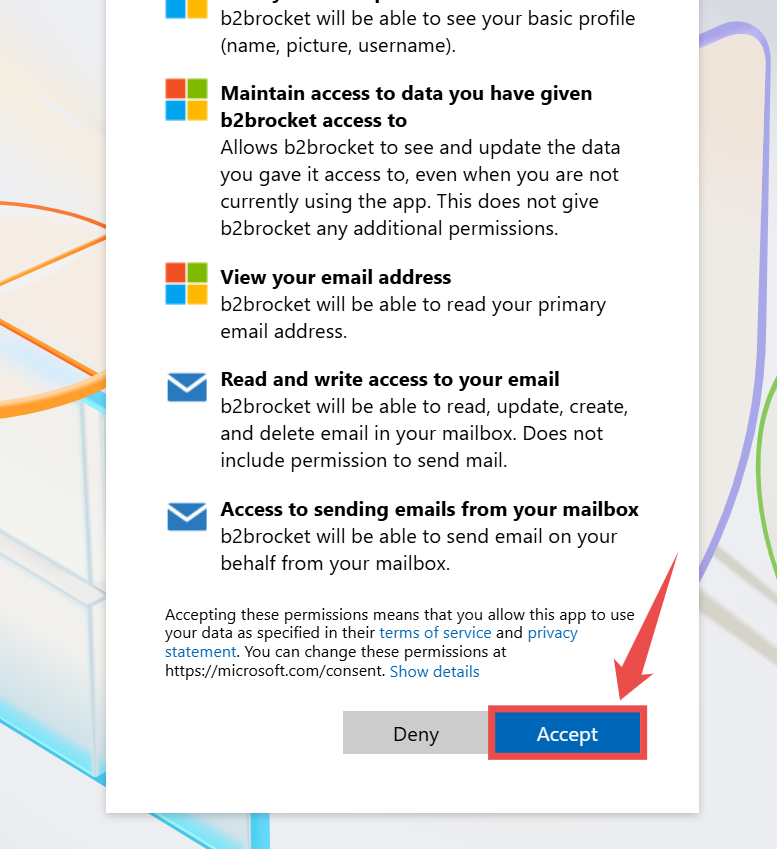
Step 7: Review the permissions requested by the platform and click Accept to grant access and complete the account integration.
Step 8: After accepting the permissions, you will be redirected back to the platform. Your Microsoft email account will appear in the Email Accounts tab with a Connected status, confirming successful integration.